Mass manipulation
A mass manipulation is a rule that writes project-specific information into the custom data of every service that matches a condition. For example, it can record which company a group of IP addresses belongs to, mark every remote-access service as critical, or classify databases.
Mass manipulations belong to one project and are managed on the Mass Manipulation tab of the project settings.
Note on the examples
All IP addresses, domains and organisations on this page are placeholders from the ranges and names reserved for documentation (192.0.2.0/24, 198.51.100.0/24, 203.0.113.0/24, example.com). They never refer to a real system, customer or company.
Why use mass manipulations
Scans describe what a service is. Mass manipulations add what it means to you: the company or subsidiary that owns it, the business sector, a classification, or a flag. The values are stored in the custom data of each service and can then be used like any other field:
- to filter and sort tables, for example with
Company:"Northstar Holding"in the filter settings, - in exports,
- in the Elasticsearch synchronisation of the project, where enabled, for downstream filtering and aggregation.
When mass manipulations run
| Trigger | What happens |
|---|---|
| Every scan and every monitoring run of the project | All saved mass manipulations run automatically once the run has finished, one after the other. They run in the order of their IDs, not in the order of the list. |
| Apply now | The content of the editor runs once on the current data of the project. It is not saved. |
Apply now first shows how many services the condition currently matches. The number also counts removed services, which the Services table hides, because mass manipulations change them as well. The count is a snapshot: a scan that is running at the same time can still change the data before you confirm.
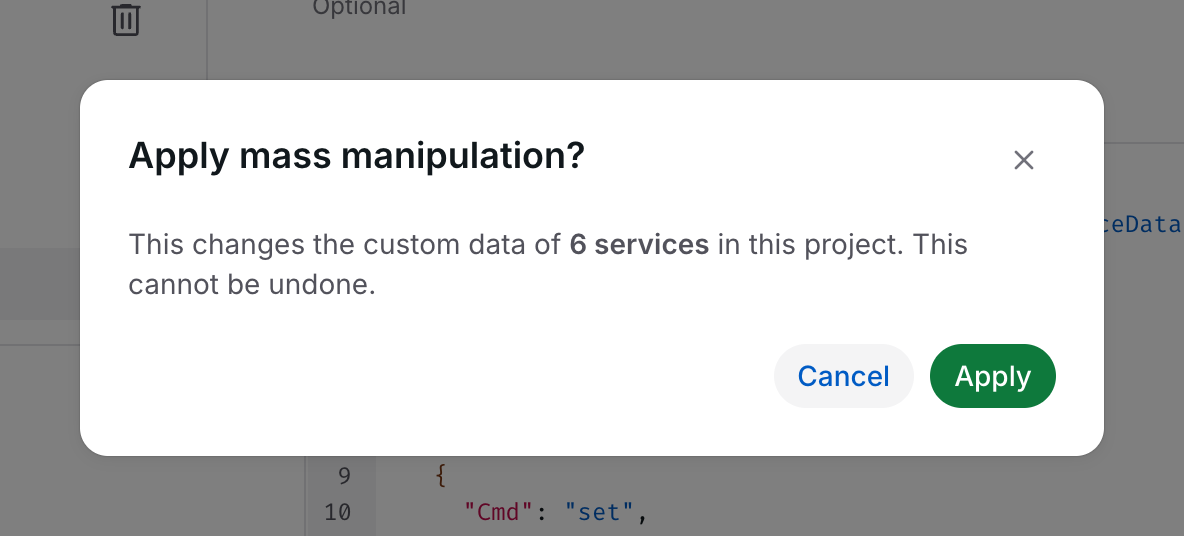
Changes made with Apply now reach Elasticsearch with the next scan or monitoring run of the project.
No undo
A mass manipulation changes the data of the project immediately. There is no undo. To revert a change, apply a second manipulation, for example one that deletes the field again.
Managing mass manipulations
Open the project settings and select the Mass Manipulation tab. Like the other project settings, the tab is available to users who may manage the project; see Roles and permissions.
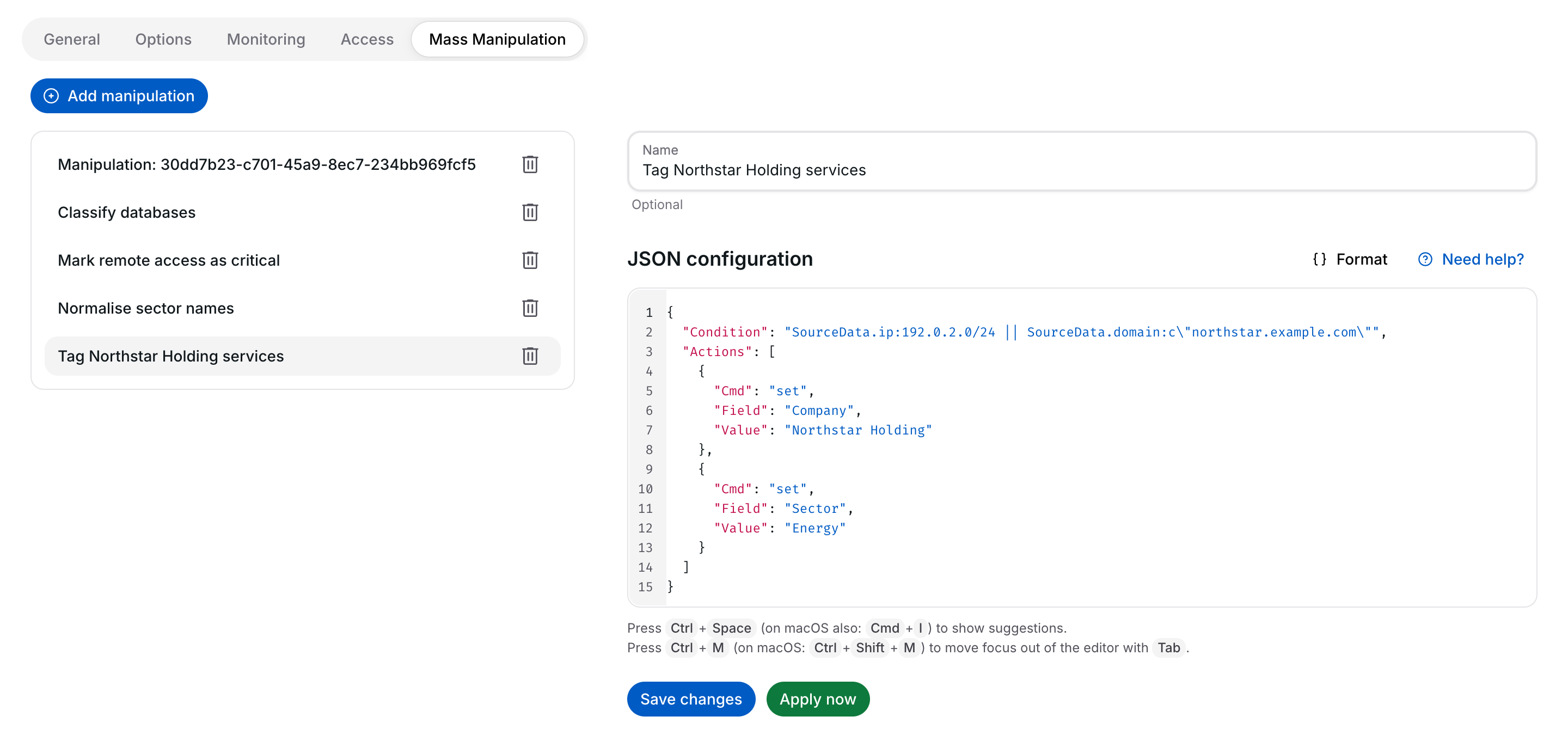
The list on the left shows the mass manipulations of the project, the form on the right the selected one.
- Order. The list is sorted by name, ignoring case and with numbers in natural order (item 2 before item 10). A manipulation without a name is listed as Manipulation: <ID> and sorted by its ID.
- Selection. Opening the tab selects the first manipulation. Each manipulation has its own address, which you can bookmark or share with users who have access to the project.
Add a mass manipulation
- Select Add manipulation. The editor starts with a template and places the cursor in
Condition. - Enter the condition, then press Tab. The cursor moves to
Cmd, and the list of commands opens. Choose one with the arrow keys and Enter. - Press Tab again to move to
Field, and once more to move toValue, and fill them in. - Optionally enter a Name of up to 100 characters. Leading and trailing spaces are removed.
- Select Save.
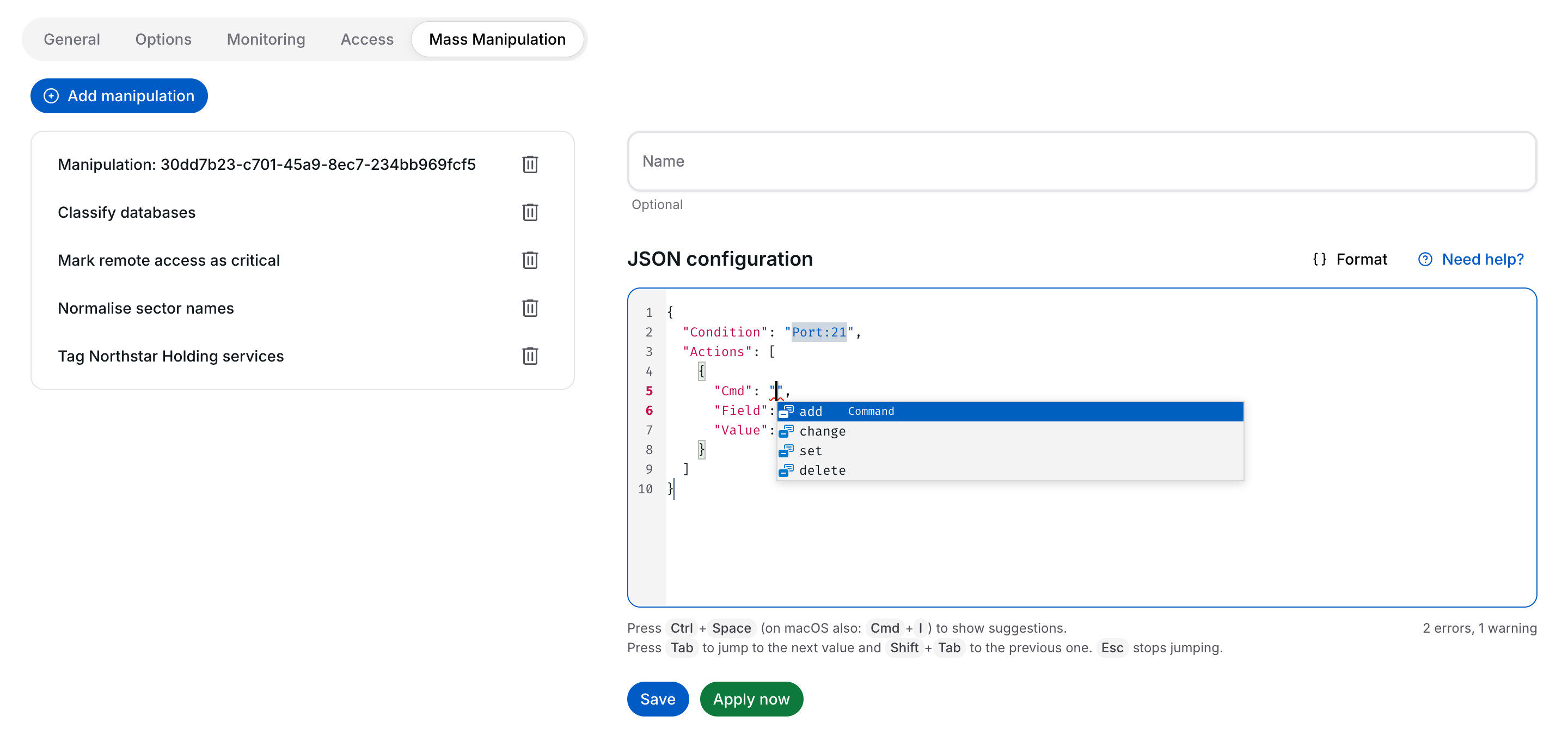
While Tab jumps between the values of the template, the hint below the editor says so; Shift+Tab jumps back. Esc stops the jumping, and Tab indents again.
The template is incomplete on purpose: no command is preselected, so every manipulation states whether it adds, changes, sets or deletes a field. Selecting Save or Apply now before it is complete lists the missing values above the form.
Edit, save and delete
- Change the name or the JSON configuration and select Save changes.
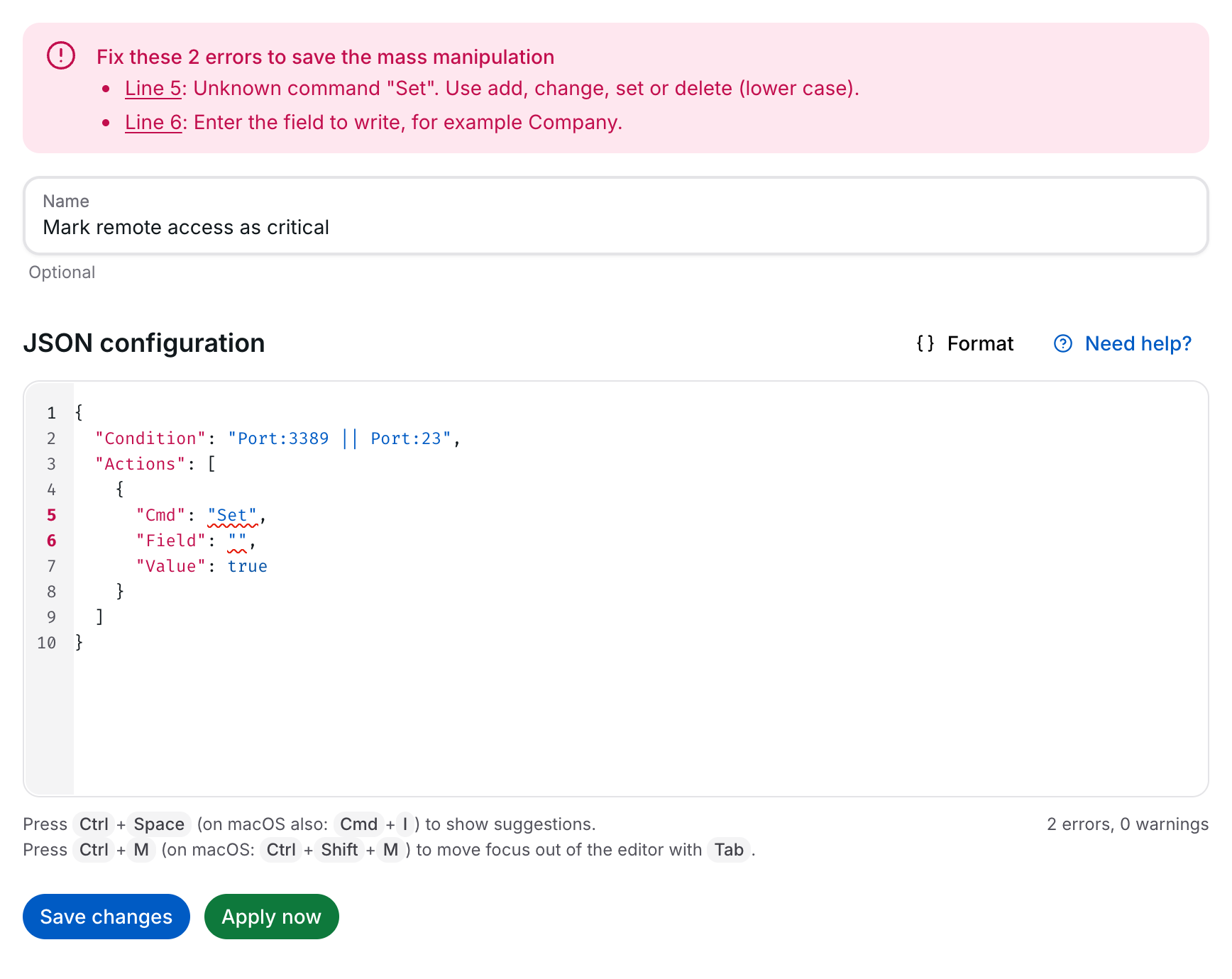
- If the configuration has errors, Save and Apply now do nothing but list the errors above the form, each with its line in the editor. Select the line of an entry to move the cursor to the error. The list disappears once the errors are fixed.
- To delete a manipulation, select the bin symbol of its row and confirm with Delete. With the keyboard, move to the row with the arrow keys and press Delete. After a deletion, the next manipulation in the list is selected.
- To try a configuration without saving it, select Apply now and confirm.
- Save and Apply now format the JSON configuration first, as Format does.
Unsaved changes
When you have unsaved changes and select another manipulation, Add manipulation, another settings tab, the back arrow, or the bin symbol of another manipulation, a dialogue asks whether to Discard the changes. Reloading the page or closing the tab shows the browser's own warning instead. The browser's back button is not intercepted.
Help in the editor
| Help | How to use it |
|---|---|
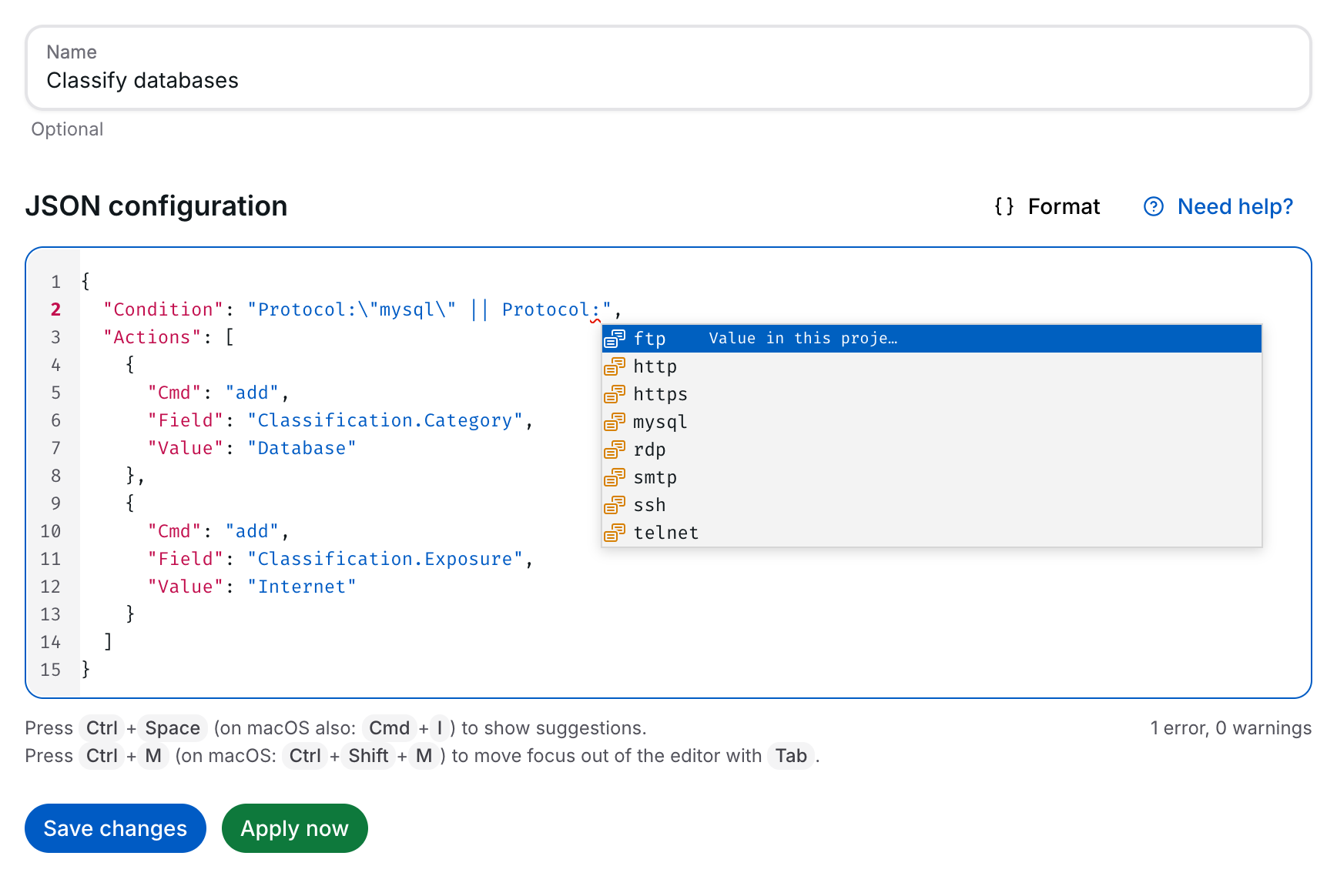
| Autocompletion | Suggestions appear while you type; Ctrl+Space opens them at any time. On macOS, where Ctrl+Space switches the keyboard layout once several layouts are enabled, Cmd+I does the same. They cover the property names, the four commands with their meaning, and complete snippets for a manipulation and for one action. |
Suggestions in Condition |
Field names, operators such as : or :c, the logical operators &&, ||, ! and (, and the values a field has in the project. |
Suggestions in Field |
The fields that the other manipulations of the project write, and the flags Critical, Checked, Login, Unsafelogin and Deleted. |
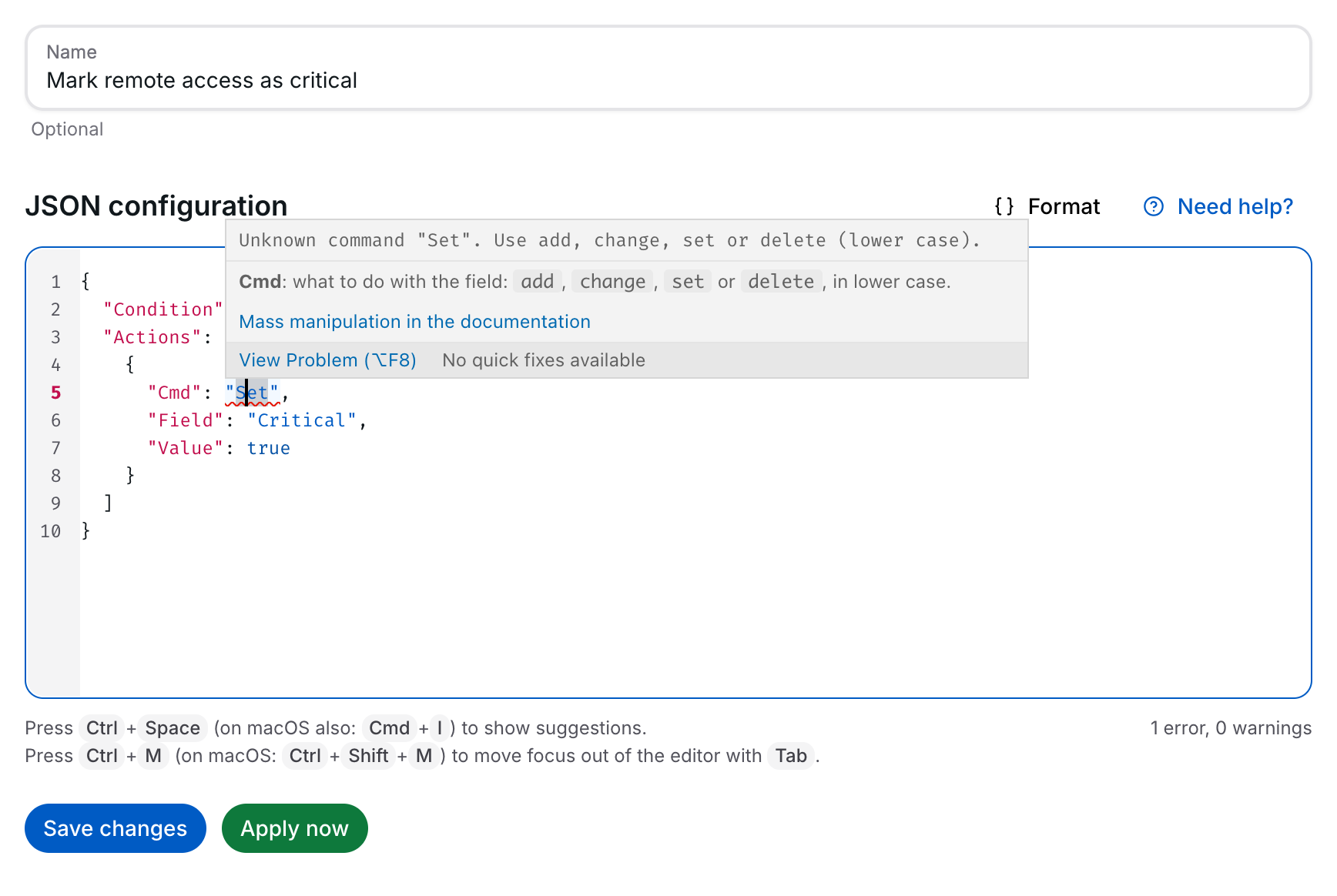
| Markers | Problems are underlined where they occur, and the line number of a line with an error is shown in bold red. Errors must be fixed before saving or applying; warnings do not block. Point at a marked position to read what is wrong and how to fix it. |
| Summary | While there are problems, the number of errors and warnings is shown right below the editor, at its right edge. |
| Formatting | Format above the editor indents the JSON configuration evenly and puts every property on a line of its own. Only spaces and line breaks change, so it also works while there are errors. Ctrl+Z (on macOS: Cmd+Z) undoes it. |
| Documentation | Point at a property name to read what it does. Where help links are enabled for the deployment, the explanation links to this page, and Need help? above the editor opens it in a new tab. |
| Keyboard | Tab indents inside the editor. Press Ctrl+M (on macOS: Ctrl+Shift+M) to make Tab move the focus out of the editor instead; press it again to switch back. In a new template, Tab first jumps between its values, as the hint below the editor shows. |
JSON reference
A mass manipulation is a JSON object with a condition and a list of actions:
{
  "Condition": "Port:21",
  "Actions": [
    { "Cmd": "set", "Field": "Company", "Value": "Northstar Holding" }
  ]
}
| Property | Type | Required | Meaning |
|---|---|---|---|
Condition |
Text | Yes | A filter expression that selects the services. |
Actions |
List | Yes, at least one | The actions to apply, in order, to every matching service. |
The name is not part of the JSON configuration; it is the separate Name field.
Condition
The condition uses the syntax of the table filter; see Filter settings and filter syntax. It is evaluated for every service separately. Fields that belong to the host, such as its domain names, match all services of that host.
Because the condition is a text inside JSON, every quote of the filter is written as \":
Useful fields:
| Field | Example |
|---|---|
Protocol |
Protocol:\"rdp\" |
Port |
Port:3389 |
SourceData.ip |
SourceData.ip:192.0.2.0/24, or a range: SourceData.ip:[192.0.2.10 to 192.0.2.20] |
SourceData.domain |
SourceData.domain:c\"example.com\" (contains) |
Domains.* |
Domains.*:c\"example.com\" (any domain name of the host) |
whois.descr |
whois.descr:\"Example Logistics\" |
| Your own fields | Company:\"Northstar Holding\", Classification.Category:\"Database\" |
| Existence of a field | exists:Company, or !exists:Company for services without it |
Combine terms with && (and), || (or), ! (not) and parentheses. Values are compared exactly, including upper and lower case: Sector:\"energy\" does not match Energy.
Actions
Each action names a command, a field and a value:
| Property | Required | Meaning |
|---|---|---|
Cmd |
Yes in the editor | What to do with the field: add, change, set or delete, in lower case. |
Field |
Yes | The field in the custom data of the service. |
Value |
Yes, except for delete |
The value to write. |
What each command does:
Cmd |
Field exists | Field missing |
|---|---|---|
add |
unchanged | created |
change |
overwritten | unchanged |
set |
overwritten | created |
delete |
removed | unchanged |
Without a Cmd, for example in manipulations created through the API or in older entries, an action behaves like set. The editor accepts such entries but shows a warning; add "Cmd": "set" to make the intention explicit.
Field
Field is a path in the custom data. Dots separate nested fields: Classification.Category writes Category inside an object Classification and creates the object when necessary. A path must not start or end with a dot, or contain empty parts such as a..b.
Value
Value can be any JSON value: text ("Energy"), a number (3), true or false, a list (["web", "external"]) or an object ({ "Owner": "IT" }). It is not used by delete. An empty text ("") is allowed, but the editor shows a warning, because it is often a value that was forgotten.
Examples
Each example below was applied to a test project and checked in the Services table with a filter on the written field.
Record the company and sector
Sets the company and sector of all services in an address range and of all services with a host name of the company:
{
  "Condition": "SourceData.ip:192.0.2.0/24 || SourceData.domain:c\"northstar.example.com\"",
  "Actions": [
    { "Cmd": "set", "Field": "Company", "Value": "Northstar Holding" },
    { "Cmd": "set", "Field": "Sector", "Value": "Energy" }
  ]
}
Afterwards, Company:"Northstar Holding" in the filter settings of the Services table lists exactly these services.
Mark services on a port as critical
Marks every service on the remote desktop and Telnet ports as critical:
{
  "Condition": "Port:3389 || Port:23",
  "Actions": [
    { "Cmd": "set", "Field": "Critical", "Value": true }
  ]
}
Classify by protocol
Adds a classification to databases, without overwriting a classification that already exists:
{
  "Condition": "Protocol:\"mysql\" || Protocol:\"postgres\"",
  "Actions": [
    { "Cmd": "add", "Field": "Classification.Category", "Value": "Database" },
    { "Cmd": "add", "Field": "Classification.Exposure", "Value": "Internet" }
  ]
}
Normalise a value
Corrects a value written with different spelling. change only touches services that already have the field:
{
  "Condition": "Sector:\"energy\"",
  "Actions": [
    { "Cmd": "change", "Field": "Sector", "Value": "Energy" }
  ]
}
Remove a field
Removes a field that is no longer needed, and keeps the rest of the classification:
{
  "Condition": "exists:Classification.Exposure",
  "Actions": [
    { "Cmd": "delete", "Field": "Classification.Exposure" }
  ]
}
Pitfalls
| Pitfall | What to do |
|---|---|
| Quotes inside the condition | Write every quote of the filter as \". An unescaped quote ends the JSON text and is marked as an error. |
| Upper-case commands | Cmd is case-sensitive: "Add" is not "add". The editor marks it as an error. |
| Order of actions | Actions run in order, and later actions see what earlier ones wrote. A condition can also match fields written by other manipulations. |
add keeps existing values |
add never overwrites. Use set to replace a value, or change to replace it only where it exists. |
| Matching per service | The condition is checked for each service. All matching services of a host are changed, the others are not. |
| Fields computed by the platform | CVE_score, CVE_max, AssignedCVEs, software, Software and Domains are recalculated and may be overwritten by the next scan. The editor shows a warning. |
| Case in values | Filter values are compared exactly, including case. |
| No undo | Check the number of matching services before confirming Apply now. |
For API users
Mass manipulations can also be managed through the API.
For authentication, see the API Quick-Start Guide.
| Method | Path | Purpose |
|---|---|---|
GET |
/api/project/{projectID}/massmanipulation |
Lists the IDs of the project's mass manipulations, in storage order. |
GET |
/api/project/{projectID}/massmanipulation/{manipulationID} |
Returns one mass manipulation: Name (if set), Condition and Actions. |
POST |
/api/project/{projectID}/massmanipulation |
Creates a mass manipulation and returns its ID. |
PUT |
/api/project/{projectID}/massmanipulation/{manipulationID} |
Replaces a mass manipulation completely. |
DELETE |
/api/project/{projectID}/massmanipulation/{manipulationID} |
Deletes a mass manipulation. |
POST |
/api/project/{projectID}/massmanipulate |
Applies the Condition and Actions of the request once, without saving them. |
Nameis optional. BecausePUTreplaces the whole manipulation, aPUTwithoutNameremoves the name.- Creating and updating do not check the configuration; the editor does. A manipulation with an invalid condition is skipped when it runs after a scan.
massmanipulatechecks that the condition is a valid filter, that there is at least one action, and that noFieldis empty, and answers400otherwise.