Define search scope
Every search term in a project carries a search scope: the set of sources the platform analyses for that entry. The scope decides which findings a search term can produce and, because each source is billed separately, what it costs against your plan.
This article explains the three search scopes, describes how they differ, sets out what each one consumes, and shows where the scope is defined.
Overview of the search scopes
| Search scope | Question it answers | Where the findings appear |
|---|---|---|
| Attack surface | Which systems and services of the organisation are reachable from the internet, and which vulnerabilities do they carry? | Assets and Discovery |
| Darknet | Has data belonging to the organisation been published in a leak? | Darknet |
| Employees | Which employees are publicly identifiable, and what is published about them? | Intel, on the Employees sub-tab |
The three are independent. A domain analysed for the attack surface alone produces no darknet findings, however exposed it is, and no employee records, not because nothing exists, but because those sources were never queried for it.
Where all scopes available for an entry are active, the platform displays the scope as All sources. This label is relative to the target type: for a domain it can represent all three scopes, while for an email address it represents Darknet and Employees. Where only some available scopes are active, the platform names them, for example Attack surface & Employees.
Scope is a property of the search term, not of the project
Two domains in the same project may carry different scopes. This is deliberate: it lets you analyse the main company domain across all sources while keeping a large number of secondary domains on the attack surface alone.
Which search terms can carry which scope
The scopes available for selection depend on the type of search term and on the company's plan.
| Type | Selectable scope | Reason |
|---|---|---|
Domain |
Attack surface, Darknet, Employees, in any available combination | A domain can be queried against all three kinds of source: it resolves to systems, appears in leak records, and identifies email addresses. |
TLD |
Attack surface, Darknet, Employees, in any available combination | This explicit type is available only to administrators. For other users, an entry such as com is classified as a Keyword. |
Email |
Darknet, Employees, in any available combination | An email address can be checked against leak and employee data, but does not define an internet-facing attack surface. |
Keyword |
Fixed: Attack surface | |
IPv4 Address, IPv4 Range |
Fixed: Attack surface | An address identifies a system, not an organisation or a person. |
IPv6 Address, IPv6 Range |
Fixed: Attack surface |
What each search scope costs
Your plan holds a separate allowance for each kind of resource. The scopes consume different allowances, which is why the choice has a direct effect on your budget.
| Search scope | Allowance consumed |
|---|---|
| Attack surface | The allowance for the type of the search term: Domains for a domain or TLD, Keywords for a keyword, IPv4 or IPv6 for an address or range. |
| Darknet | The Darknet allowance. |
| Employees | The Employee lookup allowance. |
During a user-triggered search, a single domain set to All sources therefore draws on three search allowances: Domains, Darknet, and Employee lookup. The same domain restricted to Attack surface draws on the Domains search allowance only. Recurring analysis is counted against the corresponding monitoring allowances configured in the plan.
Search and monitoring are billed separately
The plan model provides a separate search and monitoring allowance for every category, including Employee lookup. The plan may enable and configure the two independently, and the Plans tab of Companies reports both columns side by side:
| Column | What it counts |
|---|---|
| Search usage | The analysis you trigger yourself: creating a project, adding a search term, rescanning. |
| Monitoring usage | The recurring re-analysis of the existing scope. |
Employee lookup also has a monitoring allowance
Employee lookup can appear under both Search usage and Monitoring usage. Creating or widening a scope and manually retrieving employee data can consume the search allowance; recurring analysis of entries with the Employees scope can consume Employee lookup from the monitoring allowance. Darknet and the attack-surface categories likewise have separate search and monitoring counterparts. Check both columns of the company's plan before enabling monitoring, because their limits and reset intervals may differ.
Reset intervals
Each allowance carries its own reset behaviour, shown beside it as Resets every day or Never resets. The behaviour is set per category and per column in the plan, so it is not the same for every customer; check your own plan rather than assuming.
An allowance that never resets is a lifetime budget for the plan: once consumed, it is gone until the plan is changed. An allowance that resets every day is a rate limit, and a scope that exhausts it only delays the analysis rather than stopping it permanently.
Prerequisites
Before you begin, please ensure that:
- you have access to the project whose scope you wish to define;
- you know which of your domains, email addresses, and administrator-created TLD entries genuinely warrant darknet or employee analysis, since these scopes consume dedicated allowances;
- you have reviewed the remaining resources of your plan, as described in Step 1.
Step 1: Review the remaining resources
The dialogues that write search terms into a project provide a resource limits control in their header.
- Open Add search terms on the Scope tab of the project.
- Select the resource limits control at the upper right of the dialogue.
- Review the consumption per category: IPv4, keyword, IPv6, domain, employee lookup, and darknet.
While entries are pending in the dialogue, the display additionally projects what they will cost. A green +1 beside a category means that the entries you have prepared will consume one unit of that allowance when you confirm them.
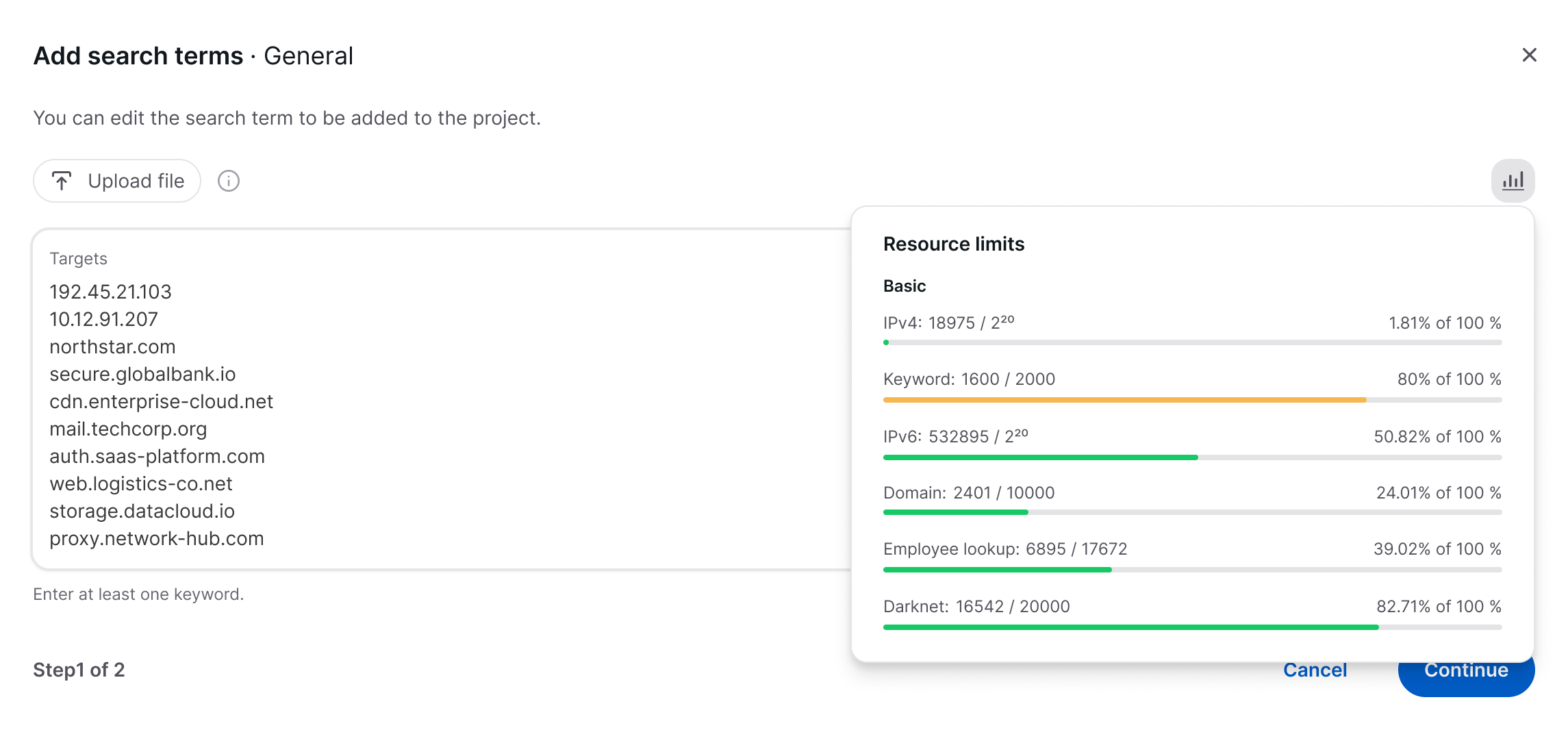 Figure 1: Resource limits, with the projected consumption of the pending entries
The projection reacts to the scope you set, which makes it the most reliable way to confirm what a scope will actually cost: it reads your own plan rather than a general rule. For one pending domain:
| Scope set on the domain | Categories showing +1 |
|---|---|
| All sources | domain, employee lookup, darknet |
| Attack surface & Employees | domain, employee lookup |
| Attack surface | domain |
Check the projection before you confirm
Set the scope first, then open the resource limits control and read the +1 markers. If a category you did not intend to spend shows an increment, correct the scope while the entries are still pending; after Add, the allowance is consumed.
Step 2: Set the scope when adding search terms
The scope is defined in the second step of the dialogue, before the entries are written to the project.
- On the Scope tab of the project, select Add search terms.
- In Step 1 of 2 · General, enter one entry per line under Targets, or select Select file to import a TXT file.
- Select Continue.
- In Step 2 of 2 · Scope options, review the Search scope column. Entries of type
Domain,Email, and administrator-createdTLDcarry a selector when the company plan makes more than one scope available. If the plan provides only one valid scope, the entry shows that scope as a fixed label. Keywords, IP addresses, and IP ranges show a fixed Attack surface label. - Open the dropdown of an entry with selectable scopes and set the scope:
| Entry | Effect |
|---|---|
| All sources | Activates or clears all scopes available for this target type and plan at once. It is shown as selected when all available scopes are active, and as partially selected when only some are. |
| Attack surface | Analyses a domain or administrator-created TLD for reachable systems and services. This option is not available for email addresses. |
| Darknet | Searches leak collections for records associated with the domain, TLD, or email address. |
| Employees | Searches for people associated with the domain, TLD, or email address. |
- Repeat for each entry that needs a scope other than the default.
- Select Add.
At least one available source must remain active. Where you reduce an entry to a single source, the checkbox of that last source becomes inactive so that it cannot be cleared as well.
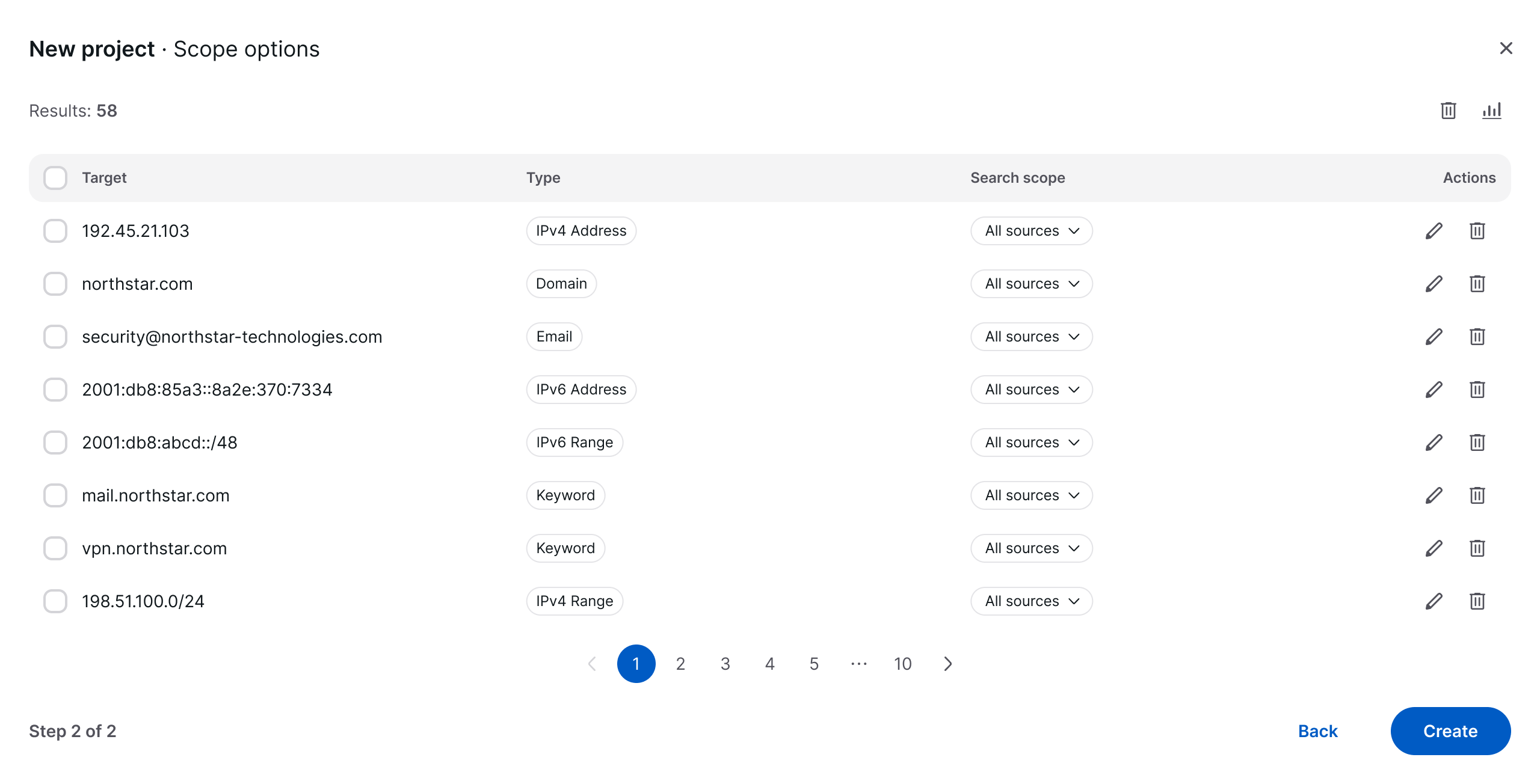 Figure 2: Step 2 of 2: Scope options, with the search scope of a domain open
The default is All available sources
A newly entered entry arrives in Step 2 with every scope available for its type and the company plan active. With all relevant plan allowances, a domain or administrator-created TLD therefore starts with all three scopes, while an email address starts with Darknet and Employees. If you do not intend to use every available source, reduce the selection here; narrowing the scope afterwards does not refund an allowance that has already been consumed.
The scope is set per entry. Selecting several rows offers a control for removing them together, but not for changing their scope in one action.
Step 3: Change the scope of an existing search term
The scope of a Domain, Email, or administrator-created TLD can be changed after it has been added.
- Open the Scope tab of the project and select the Search terms sub-tab.
- Locate the entry. The Search scope column states its current scope.
- Select Change search scope in the Actions column of that row.
- Activate or deactivate the scopes available for the entry. Domains and TLDs may offer Attack surface, Darknet, and Employees; email addresses may offer Darknet and Employees. The exact options depend on the company plan.
- Select Apply.
At least one available source must remain active. This dialogue enforces it differently from Step 2 of the add dialogue: here every available checkbox can be cleared, but Apply then cannot be selected. To stop analysing an entry entirely, remove the search term instead of clearing its scope.
The Actions column offers Change search scope for Domain, Email, and TLD entries because they support multiple scopes. For keywords, IP addresses, and IP ranges the column contains the delete control alone.
Step 4: Verify the scope of the project
- Return to the Search terms sub-tab.
- Read the Search scope column for every entry, and confirm that each entry carries the scope you intended.
- Where you wish to export the list for review, use the Export control above the table and choose JSON or CSV; the Search scope column is included.
The next analysis applies the new scopes. Widening the scope of an entry causes the additional sources to be queried on the next run; narrowing it stops those sources being queried again, but does not remove findings that have already been written.
Result
Every search term in the project now carries a deliberate scope. Keywords, IP addresses, and IP ranges are analysed only for the attack surface. Domains and administrator-created TLDs can use all three scopes, while email addresses can use Darknet and Employees.
Choosing a scope in practice
| Situation | Recommended scope |
|---|---|
| The main domain of the organisation | All sources: this is the domain most likely to appear in leaks and to identify employees. |
| Domains used for employee email | Attack surface and Employees |
| A large number of parked, redirect, or defensive domains | Attack surface alone: they host little and identify nobody, and setting them to all sources exhausts the darknet allowance quickly. |
| A domain belonging to a subsidiary with its own staff | All sources, if the subsidiary is in scope of your mandate |
| A supplier's domain you are monitoring for exposure | Attack surface alone, unless you have a documented reason to search for their employees |
| An individual email address under investigation | Darknet and/or Employees; Attack surface is not available for email addresses |
Start narrow, widen deliberately
Adding the darknet or employee scope to a domain later is a single action, and the first analysis after the change retrieves what was missed. Removing it later does not give the allowance back. Where you are unsure, begin with Attack surface and widen once you have seen what the project produces.
Troubleshooting
| Observation | Possible cause | Recommended action |
|---|---|---|
| The Search scope column shows a fixed Attack surface label with no dropdown. | The entry is a keyword, IP address, or IP range. A TLD-like value is also treated as a keyword for non-administrators. | This is expected for these types. Only domains, email addresses, and administrator-created TLD entries support multiple scopes. |
| An email address offers no Attack surface option. | Email addresses support only Darknet and Employees. | This is expected; select at least one of the available scopes. |
| Apply cannot be selected in Change search scope. | All available sources have been cleared. | Activate at least one, or remove the search term instead. |
| No darknet findings appear, although the project has been analysed. | No search term carries the darknet scope. | Add Darknet to a relevant domain, email address, or administrator-created TLD and wait for the next analysis. |
| The Employees sub-tab of Intel stays empty. | No supported entry carries the employee scope, or the employee lookup allowance is exhausted. | Check the scope of relevant domains, email addresses, and TLDs, then the Plans tab of Companies. |
| An allowance is exhausted and the analysis is incomplete. | The scope consumes more than the plan provides. | Narrow the scope of the entries that matter least, or contact your account manager regarding an upgrade. |
| Widening a scope produced no new findings. | The analysis has not yet run again. | Wait until the Updating data indicator is no longer displayed, then review the relevant view. |